Are your carefully made web pages hiding from Google? If your content is missing from search results, you’re likely dealing with indexing problems. These are not small glitches; they can block your website from getting search traffic and reaching new customers. Google Search Console (GSC) gives you a set of tools to find and fix these issues. Learning how to use GSC well is very important for any site owner who wants better visibility and higher rankings.
If you use a specific content management system, like Drupal SEO, setup choices are just as important to make sure your pages get indexed and seen.
When pages aren’t indexed, they can’t show up in search results, even if the content is great. That means lost visits, fewer conversions, and slower growth. Regular checks and quick fixes in GSC are a must to keep your site healthy and visible in today’s search results.
What Are Indexing Problems in Google Search Console?
Indexing problems in Google Search Console are issues that stop Google from reading and adding your pages to its index. When Googlebot, Google’s crawler, runs into trouble, your pages may never reach the index, making them invisible to users. You might see full exclusions, “crawled but not indexed,” or other states that point to different causes.
The impact can be big. Without indexing, your pages won’t appear for any searches, which hurts traffic and new customer growth. It’s like owning a great store that isn’t listed anywhere. GSC works like an early alert system, flagging problems so you can fix them before they hurt visibility and performance.
How Does Google Index Web Pages?
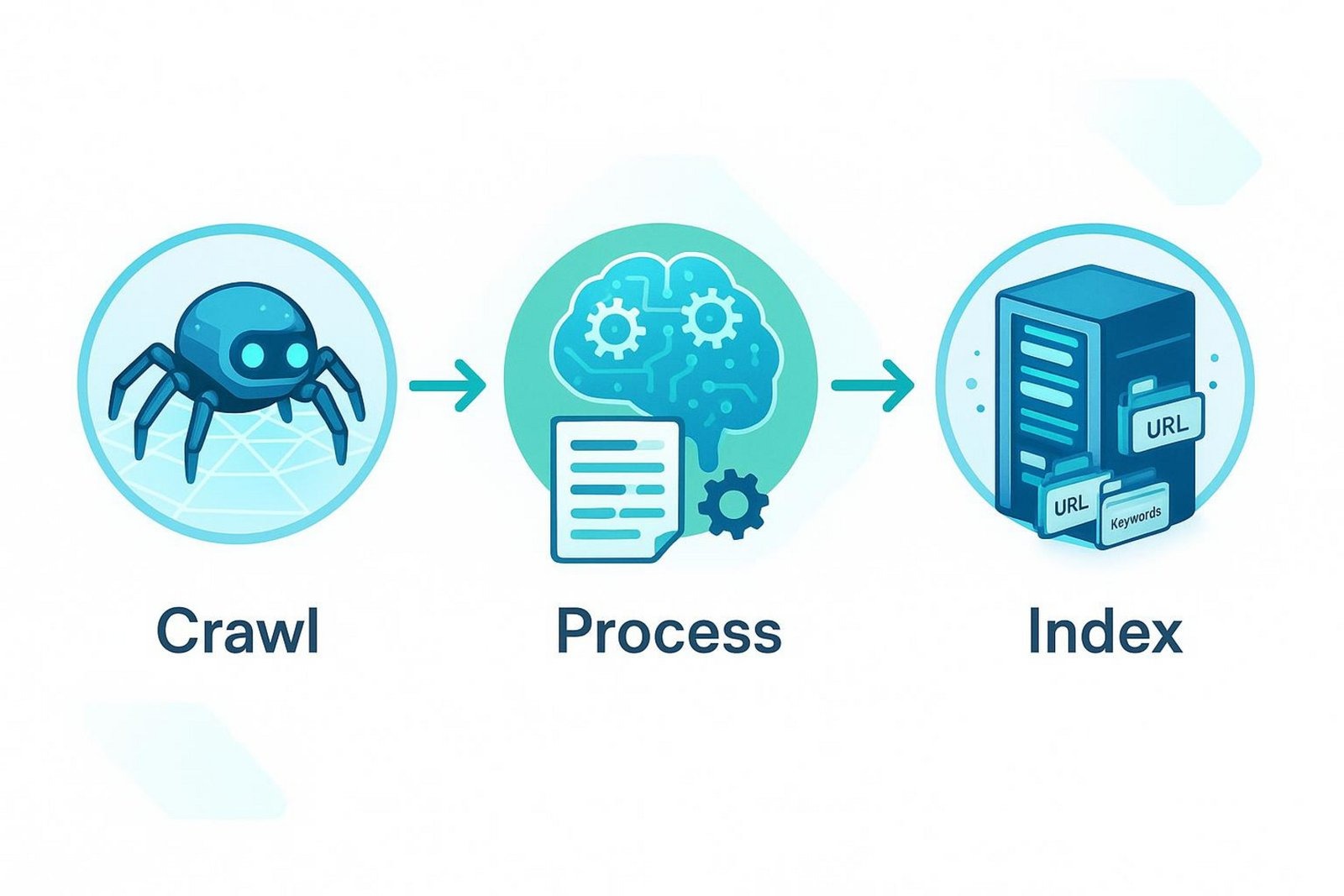
Google follows three main steps: crawl, process, and index. First, Googlebot crawls pages by following links and sitemaps. Next, Google processes what it found, reading the HTML, text, images, and signals to understand the topic and quality. Finally, Google stores the page in its index, a giant database used to return results for searches.
This flow helps Google match user queries with the most helpful pages it can find.
Difference Between Indexing and Crawling
Crawling is the discovery step. Googlebot finds URLs and reads their content. Crawl problems (like 404s or server errors) stop access to the page.
Indexing happens after crawling. Google decides if the page should go into its index and how to categorize it. A page can be crawled but left out of the index if the content is thin, low-quality, duplicate, or blocked by directives.
| Stage | What it does | Common problems | Fix focus |
| Crawling | Finds and fetches pages | 404s, 5xx errors, robots.txt blocks | Access, server health, allow rules |
| Indexing | Evaluates and stores pages | Noindex tags, duplicates, thin pages | Content quality, canonicals, directives |
Why Indexing Issues Affect Search Visibility
The link between indexing and visibility is clear. If a page isn’t in the index, it can’t rank. Your useful articles, product pages, or service pages won’t reach your audience. A site can offer great content and UX, but without indexing, it remains unseen — something teams like NON.agency focus on addressing through strategic technical SEO.
Indexing problems cut organic traffic and can hint at deeper technical issues. Also, if Google struggles with your site often, it may affect how Google views your site’s quality. So, getting pages indexed helps both visibility and trust.
Common Types of Indexing Issues in Google Search Console
Google Search Console gives a clear overview of your indexing status and flags problems that stop pages from appearing in search. Knowing these issues helps you fix them faster.
404 Not Found Errors
A “Not Found (404)” error means Googlebot or a user tried to visit a URL that doesn’t exist. Causes include removed pages, changed URLs without redirects, or broken links.
- If a page moved, add a 301 redirect from the old URL to the new one.
- Update or remove internal and external links that point to the missing page.
- Add a helpful custom 404 page to guide users to useful content.
Soft 404 Errors
A “Soft 404” happens when a page returns 200 OK but has little or no real content, so it should act like a 404. Examples include empty category pages or placeholder pages.
- Add real, useful content to flagged pages.
- If a page serves no purpose, return a true 404 or redirect to a better page.
Pages Blocked by robots.txt
The robots.txt file tells crawlers where they can go. “Pages Blocked by robots.txt” means a rule is stopping Googlebot from crawling certain URLs.
- Open yourdomain.com/robots.txt and review Disallow lines.
- Remove or change rules that block pages you want crawled.
- Remember: blocking in robots.txt stops crawling, but an already known URL might still appear with a warning.
Pages Excluded by noindex Tag
The noindex meta tag tells search engines to skip a page. It’s fine for thank-you pages, login screens, or archives.
- If a key page is excluded by mistake, remove the noindex tag.
- Use the URL Inspection tool to request re-indexing after changes.
Server Error (5xx)
“Server error (5xx)” means Googlebot couldn’t load the page because of a server problem, such as 500 or 503. These can affect many pages and make your site look unreliable.
- Check server logs to find the cause.
- Common causes: overload, bad server settings, database issues, script errors.
- Check response times and resource use; contact your host if problems continue.
Redirect Issues
Redirects help users and bots move from old URLs to new ones. Problems include redirect loops, long chains, or using 302 where 301 is needed for permanent moves.
- Shorten redirect chains to go straight to the final URL.
- Use 301 for permanent moves.
- Add a canonical URL for pages with multiple versions.
Duplicate Content and Canonical Tag Conflicts
Duplicate content appears on more than one URL and can confuse search engines. GSC may report “Duplicate without user-selected canonical” or “Duplicate, Google chose different canonical than user.”
- Use rel=”canonical” to mark the preferred URL.
- If Google ignores your chosen canonical, check that version is accessible, truly the best copy, and consider 301s from duplicates.
Crawled – currently not indexed
This means Googlebot crawled the page but didn’t add it to the index. Reasons often include thin or duplicate content, low value, or timing.
- Improve the content so it’s unique, helpful, and complete.
- Add internal links from important pages.
- Give new pages some time, but keep improving if the status remains.
Discovered – currently not indexed
Google knows the URL (from a sitemap or links) but hasn’t crawled it yet. This can be due to limited crawl budget, slow pages, or technical blocks.
- Check robots.txt rules, page speed, and broken links.
- Link to these pages from strong internal pages.
- Avoid thin or duplicate pages that Google may put low on its list.
Orphan Pages and Poor Internal Linking
Orphan pages have no internal links pointing to them, so Google may never find them. Weak internal linking can also hide important pages deep in your site.
- Use a crawler (e.g., Screaming Frog) to find orphan pages.
- Add links from relevant, high-value pages.
- Flatten your site structure and connect related content clearly.
How to Use Google Search Console to Detect Indexing Problems
GSC is a free Google service that shows how Google sees your site. Regular checks help you spot and fix problems before they hurt visibility.
Know which reports to check and how to read them. GSC flags crawl and index issues, and you investigate and fix them. Here are the core tools to use.
Locating the Page Indexing Report
Open GSC, choose your site, go to “Indexing” in the left menu, then click “Pages.” This report gives a clear summary of URLs Google found and their index status.
You’ll see how many pages are indexed (green) and not indexed (gray), plus a chart over time. For very small sites (under 500 pages), Google says this may be less urgent, but for larger sites it’s an important view of indexing health.

Identifying Errors in the Index Coverage Report
Open the “Not Indexed” tab to see why pages aren’t indexed. You’ll find reasons like “Not Found (404),” “Excluded by ‘noindex’ tag,” and “Blocked by robots.txt,” with counts.
Click any issue to see details, trends, help links, and sample URLs. This view helps you see scope and pick specific pages to fix first.
Using the URL Inspection Tool for Diagnosis
The URL Inspection tool shows how Google sees a single URL. It helps you check crawl, index, and blocking status for that page.
Paste a URL into the top search bar in GSC. You’ll see the current index status and can also run a Live Test. Results can differ, so try both for a full view.
Checking URL Status and Coverage
The tool shows if the URL is indexed or not, and any errors. You’ll see last crawl date, mobile usability, and structured data status.
The Coverage section explains why a page isn’t indexed and maps to the same categories in the Pages report.
Testing for robots.txt Blocking
The tool can confirm a robots.txt block and even show the exact line that causes it.
- Review the blocking rule and update robots.txt if the page should be crawled.
- Request indexing again after changes.
Identifying Meta noindex Issues
If a page is excluded by a noindex tag, the tool will show it. This helps find mistakes from themes, plugins, or code.
- Remove the noindex tag if the page should appear in search.
- Use “Request Indexing” to prompt a re-crawl.
Diagnosing and Interpreting Indexing Errors
After GSC lists your errors, the next step is to find the cause, the impact, and what to fix first. Data from GSC points you in the right direction, and you connect the dots to plan the fix.
Each message explains why Google can’t index a page. Read the details, then plan targeted actions. Don’t ignore these warnings, or bigger problems may follow.
Analyzing Excluded Pages and Explanations
In the “Excluded” section, review reasons like “Crawled – currently not indexed,” “Discovered – currently not indexed,” “Blocked by robots.txt,” “Excluded by ‘noindex’ tag,” and duplicates. Each needs a different fix.
For many “Crawled – currently not indexed” pages, look at content quality and internal links. For “Blocked by robots.txt,” fix the rule. Click a reason to see affected URLs, then use the URL Inspection tool to check single pages and confirm what’s happening.
Prioritizing Issues Based on Impact
Some errors affect only a few minor pages; others hurt major sections. Fix high-impact issues first, such as problems on product, service, and key blog pages.
Address severe errors early, like 5xx server problems, or anything that blocks crawling (robots.txt blocks, 401/403). Aim for the biggest wins first, then clean up the rest.
Tracing the Origin of Crawl Errors
Find where errors come from. For 404s, check internal links and external backlinks that point to dead URLs. The Inspection tool may show a referring page. For 5xx, review hosting logs. Redirect problems often follow site moves, URL changes, or plugin settings.
Fix the root cause: add 301s after URL changes, adjust plugins that add noindex, and set better processes to prevent repeats. This leads to a stronger, easier-to-crawl site.
Verifying Solutions and Monitoring Indexing Status
Fixes need follow-up to confirm they worked, and regular checks to catch new issues. Crawling and indexing take time, so be patient and keep checking.
Build a habit of watching your site’s indexing in GSC. Confirm fixes, watch trends, and keep your content findable and visible.
Validating Fixes in Google Search Console
After you make a fix, go to “Pages,” open the issue you worked on (like “Not Found (404)” or “Excluded by ‘noindex’ tag”), and click “VALIDATE FIX.” This asks Google to re-check the URLs.
Validation may take days or weeks. You’ll get messages when it starts and ends. A successful run shows fewer affected URLs and more pages indexed.
Tracking Progress and Ongoing Indexation
Keep visiting the Pages report to watch trends. Are indexed pages going up? Are “Not Indexed” counts dropping? Watch for sudden spikes in errors.
For new or updated pages, use the URL Inspection tool to request indexing and track status. If a page stays “Discovered” or “Crawled” but not indexed for a long time, improve content and links. Check the report weekly after big site changes, then less often once things stabilize.
Best Practices for Preventing Future Indexing Problems
- Keep a clear site structure with strong internal links. Avoid orphan pages.
- Use robots.txt and noindex carefully; don’t block important pages.
- Set correct canonical tags to manage duplicates.
- Use 301 redirects for permanent URL changes.
- Audit for broken links and server errors on a regular schedule.
- Keep your CMS, themes, and plugins updated.
Frequently Asked Questions About Google Search Console Indexing
Even with solid GSC knowledge, some questions pop up often. These answers help you work through Google’s indexing system with confidence.
Why Is My Page Not Indexed Even Though There Are No Errors?
If there are no clear errors but the page isn’t indexed (often “Crawled – currently not indexed” or “Discovered – currently not indexed”), Google might not see enough value yet. Pages that are thin, low-quality, or very similar to others may be skipped to keep results clean.
Other factors include weak internal links to the page or a need for more time, especially on newer sites. Improve the content, make it more unique and helpful, and add links from important pages. A stronger site overall also helps Google choose to index more pages.
How Long Does Indexing Take After Submitting a URL?
Timing varies a lot-from hours to days or weeks. It depends on crawl rate, site reputation, content quality, and Google’s current load.
High-trust sites with fresh, high-quality content often get picked up faster. Newer or quieter sites can take longer. Submitting a sitemap and using “Request Indexing” can speed things up, but it’s not instant. If delays continue, review content and internal links.
Does Fixing Indexing Issues Improve Rankings Instantly?
Fixing indexing problems is very important, but it rarely gives instant ranking jumps. A page has to be indexed to rank at all. After that, ranking depends on relevance, content quality, UX, links, speed, mobile readiness, and domain strength.
Removing index blockers helps your pages appear and get impressions. Bigger ranking gains come from ongoing SEO work across many factors. Think of indexing fixes as getting your page into the race; broader SEO helps it win.

“Welcome to the ultimate destination for the best Instagram captions! I’m James, your go-to guide for crafting the perfect caption to match any moment. Whether you’re posting a selfie, a scenic shot, or a fun group picture, I’ve got you covered with creative, catchy, and relatable captions for every occasion. Dive into my collection and discover the perfect words to express yourself on Instagram!”